The map
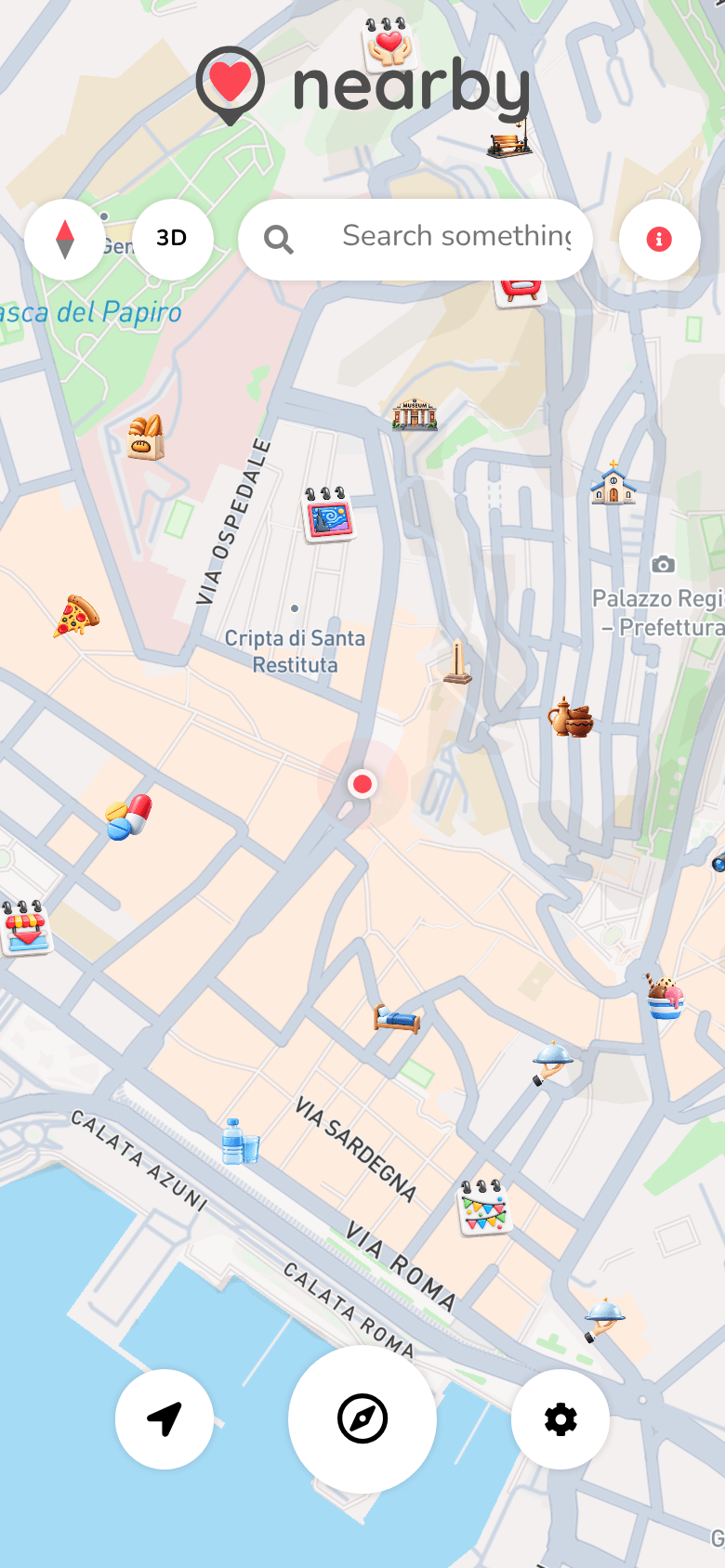
The map is Nearby's main screen: it opens at app.nearbycommunity.it (and app.nearbycommunity.it/discover/map) and shows the events and points of interest around you, each with the icon of its category.
What you'll find
- 📱 Web mobile
- 💻 Web desktop
- 📲 App
- At the top: the logo and the Search something... field (see Searching), with the ⓘ icon on its right, which opens this page of the guide. On the phone, to the left of the search field, there are the compass and the 3D / 2D button.
- At the bottom, in the centre, three buttons:
- ➤ your location: brings the map back to where you are;
- the compass, bigger: opens the Experience Wheel;
- ⚙ Settings (see Settings).
You zoom in and out with two fingers.
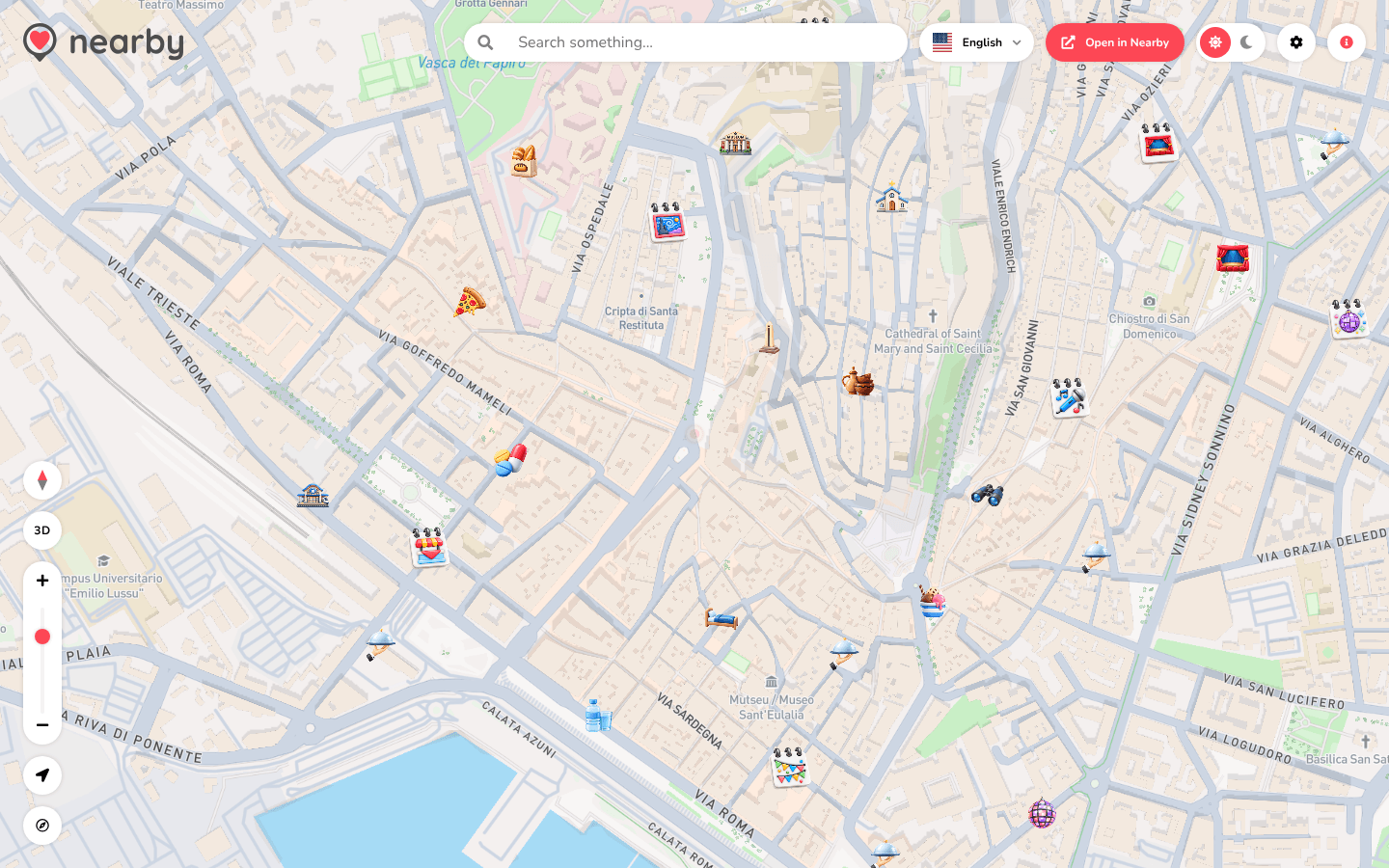
- At the top left: the logo.
- At the top right: the Search something... field (see Searching), the language menu, Open in Nearby, the light / dark theme switch, ⚙ Settings (see Settings) and the ⓘ icon, which opens this page of the guide.
- At the bottom left: ➤ your location, the compass that opens the Experience Wheel, and the + and − zoom buttons with the slider.
You can also zoom with the mouse wheel; when you hover over an item, the pointer turns into a hand.
The guide of the app is on its way
We are preparing the pages about the Nearby Community app for iPhone and Android, with its screens. In the meantime you can download it for free from the stores.
Your location
When it opens, the map starts from a view of the whole world and flies to you. If you've allowed access to your location (see Your first visit), a dot shows where you are and follows you as you move. The ➤ button brings the map back to your location at any time.
Items on the map
Events and places appear when the map is zoomed in close enough, and they update as you move it. A selected item gets bigger.
- 📱 Web mobile
- 💻 Web desktop
- 📲 App
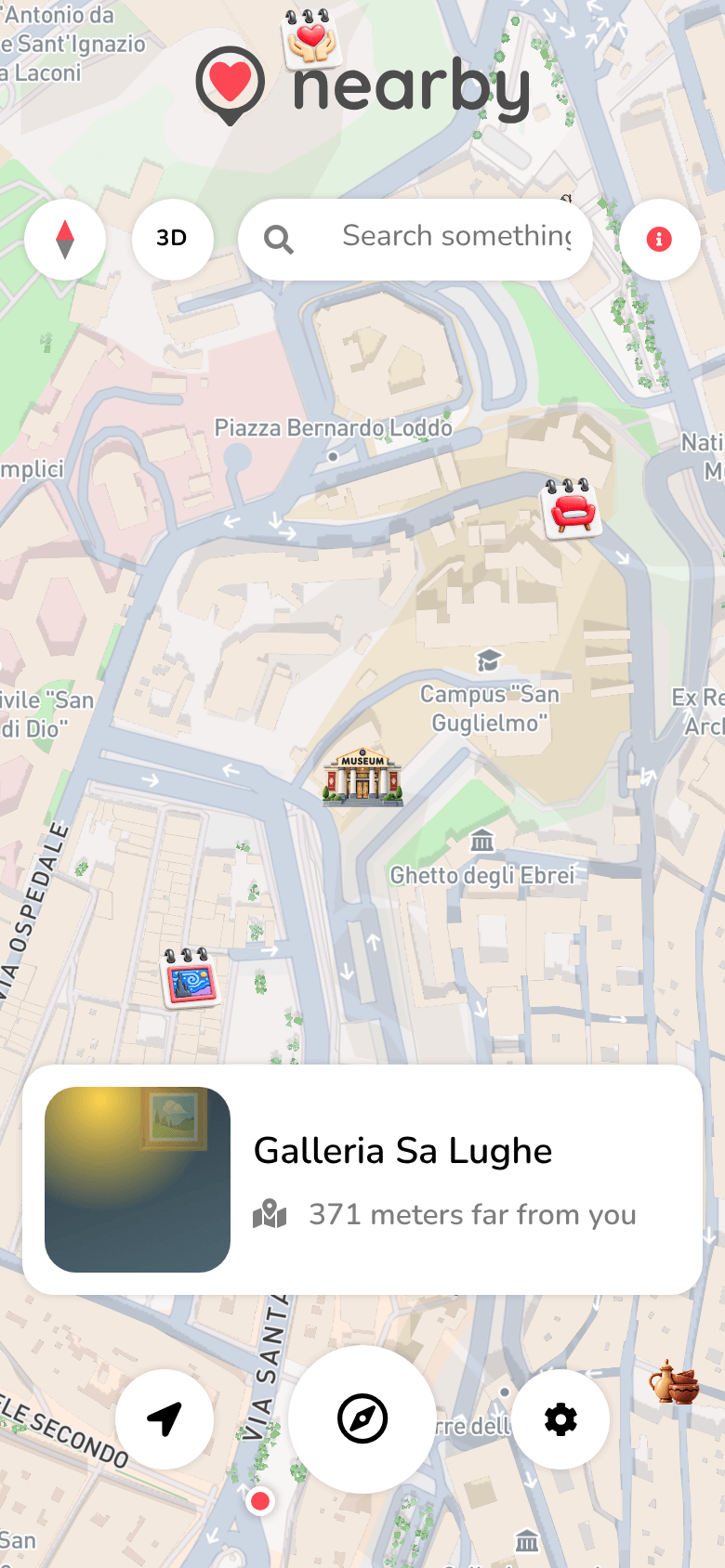
Tap an item: a card appears at the bottom with the photo, the name and the distance. Tap the card to open the full page (event or place); tap an empty spot on the map to close it.
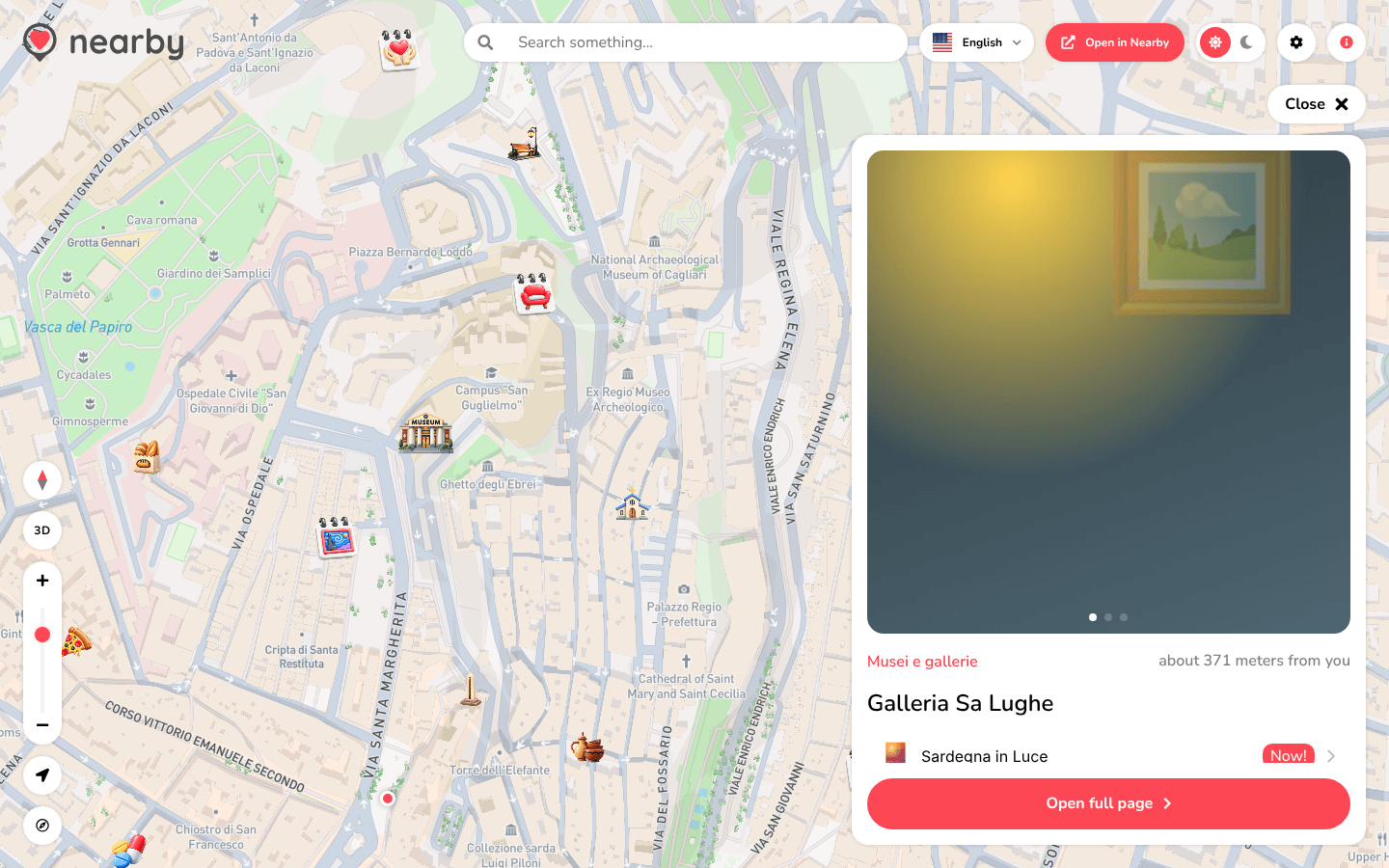
Click an item: a panel opens on the right with all the details of the event or place. At the top there's Close, at the bottom Open full page to open the full page. Clicking an empty spot on the map closes the panel.
The guide of the app is on its way
We are preparing the pages about the Nearby Community app for iPhone and Android, with its screens. In the meantime you can download it for free from the stores.
Map controls
- Compass (Reset to north): if you've rotated the map, it turns it back with north at the top. The big compass button opens the Experience Wheel.
- 3D / 2D (Tilt map): tilts the map into perspective or flattens it again. The button shows the mode it will switch to.
- + and − (Zoom in, Zoom out): zoom, with the slider to adjust it.
Discovering an area
- 📱 Web mobile
- 💻 Web desktop
- 📲 App
Press and hold a spot on the map for half a second: a bubble appears with Discover and the name of the city. Tap it for suggestions from the Smart AI.
Right-click a spot on the map: a bubble appears with Discover and the name of the city. Click it for suggestions from the Smart AI.
The guide of the app is on its way
We are preparing the pages about the Nearby Community app for iPhone and Android, with its screens. In the meantime you can download it for free from the stores.
In the web app the map always shows events and places: the map filters and Tales on the map are available in the app.